
Putting a photo on the Sea Link in WebGL
How a browser photo becomes a simulated bridge light display: editable drafts, WebGL textures, water reflections, PNG capture and CDN assets.
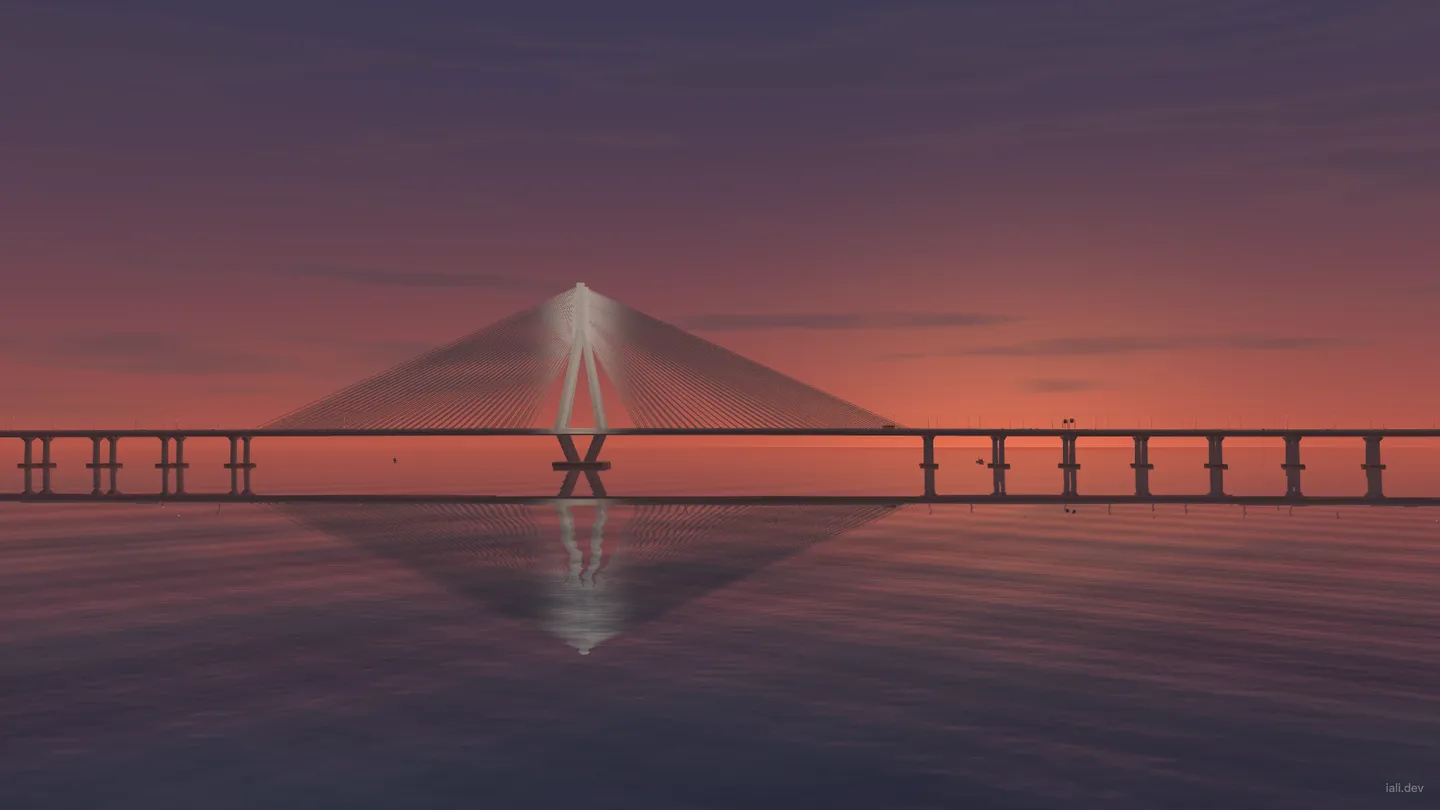
Putting a photo on a 3D bridge involves more than drawing it over the view. The image needs to follow the cable fans, sit behind objects that obscure it, and appear in the water. The editor also needs to let you try a crop without changing the display you have already applied.
The Sea Link project handles those jobs in a custom WebGL 2 renderer, written in vanilla JavaScript. GLSL shaders draw the scene, water and photo lights. A GLB supplies the bridge and surrounding geometry.
Keep the draft separate from the scene
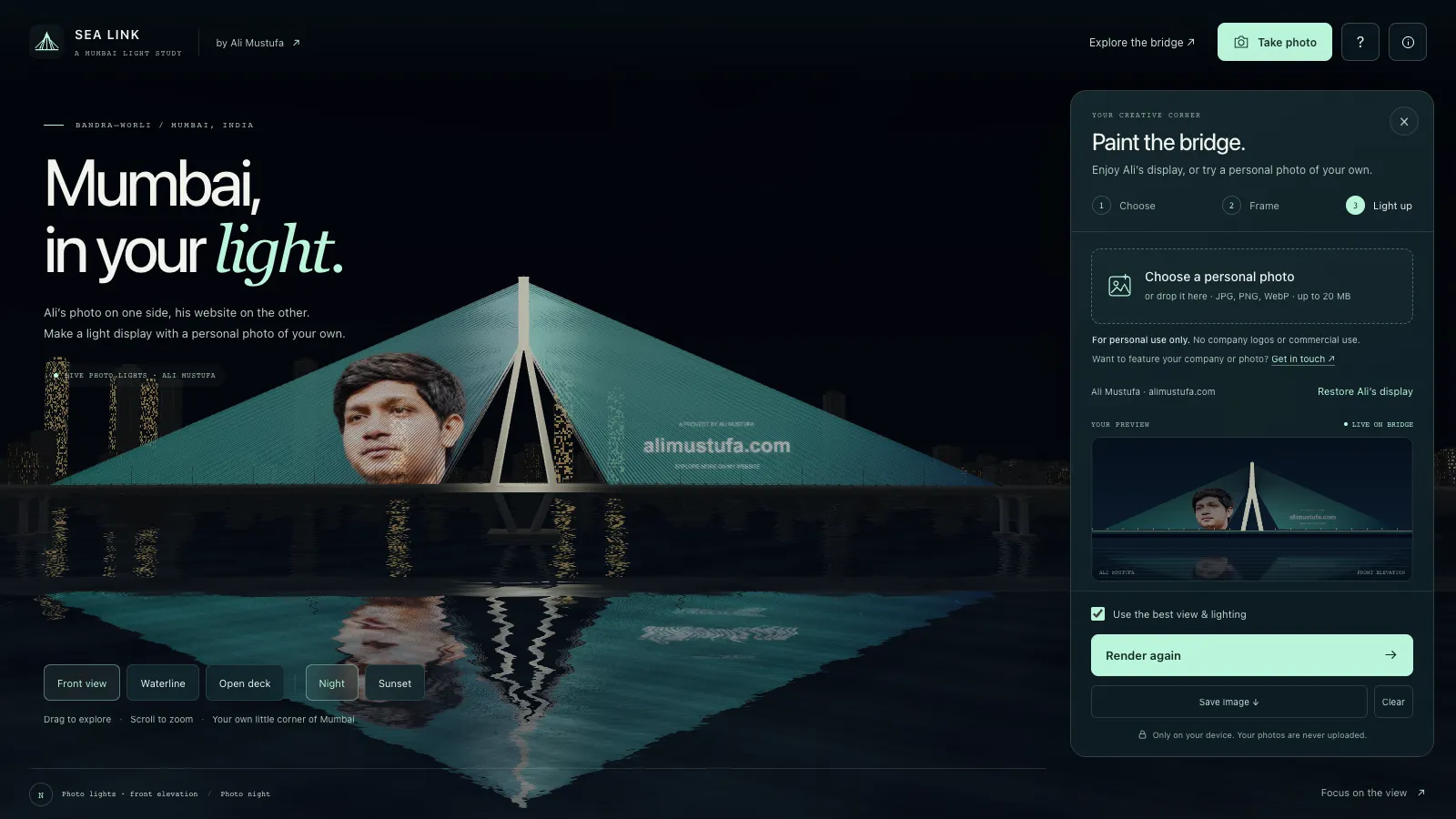
Choosing a photo creates a working image in a browser canvas. The studio accepts JPEG, PNG and WebP, decodes the file locally, and limits the working copy’s long edge to 2,048 pixels. Moving or scaling the image changes a prepared texture atlas: a canvas arranging the artwork for the two cable fans.
That atlas feeds the small preview. Pressing Render on bridge uploads it as a WebGL texture and copies the applied source image and settings into separate state. Later edits can change the draft while the bridge keeps displaying the last confirmed version. Clearing the lights leaves the draft available.
This separation also matters during graphics recovery. If the browser loses its WebGL context, the renderer rebuilds the applied image from its saved source and settings. It doesn’t accidentally publish a newer crop still waiting in the editor.
Map the image to the cable fans
The photo display adds tessellated meshes along the outer cable-fan envelopes around the main Bandra pylon. Their vertices follow the model’s anchor heights, spread and sag. Texture coordinates map the prepared image onto those surfaces.
A GLSL fragment shader samples the image and combines its transparency with a dense ribbon pattern. A second draw adds a soft glow using additive blending. Depth testing lets scene geometry obscure the display where appropriate. The renderer chooses the exterior surface facing the camera and reverses the horizontal texture coordinate on the opposite side, keeping lettering readable from either exterior.
The editor previews the same atlas and fan outline in front elevation. It helps judge framing and clipping; the full scene adds perspective, lighting and occlusion.
Render the reflection from another camera
Before drawing the main view, the renderer mirrors the camera and its target across the water plane. It draws the scene, including the applied photo lights, into an offscreen framebuffer.
The water shader samples that reflection texture, distorts its coordinates with surface motion, and blends it with the water colour and highlights. Changing the artwork or camera therefore changes the reflected scene. The main pass draws opaque objects, water, transparent objects and the photo display in that order.
Capture a fresh frame
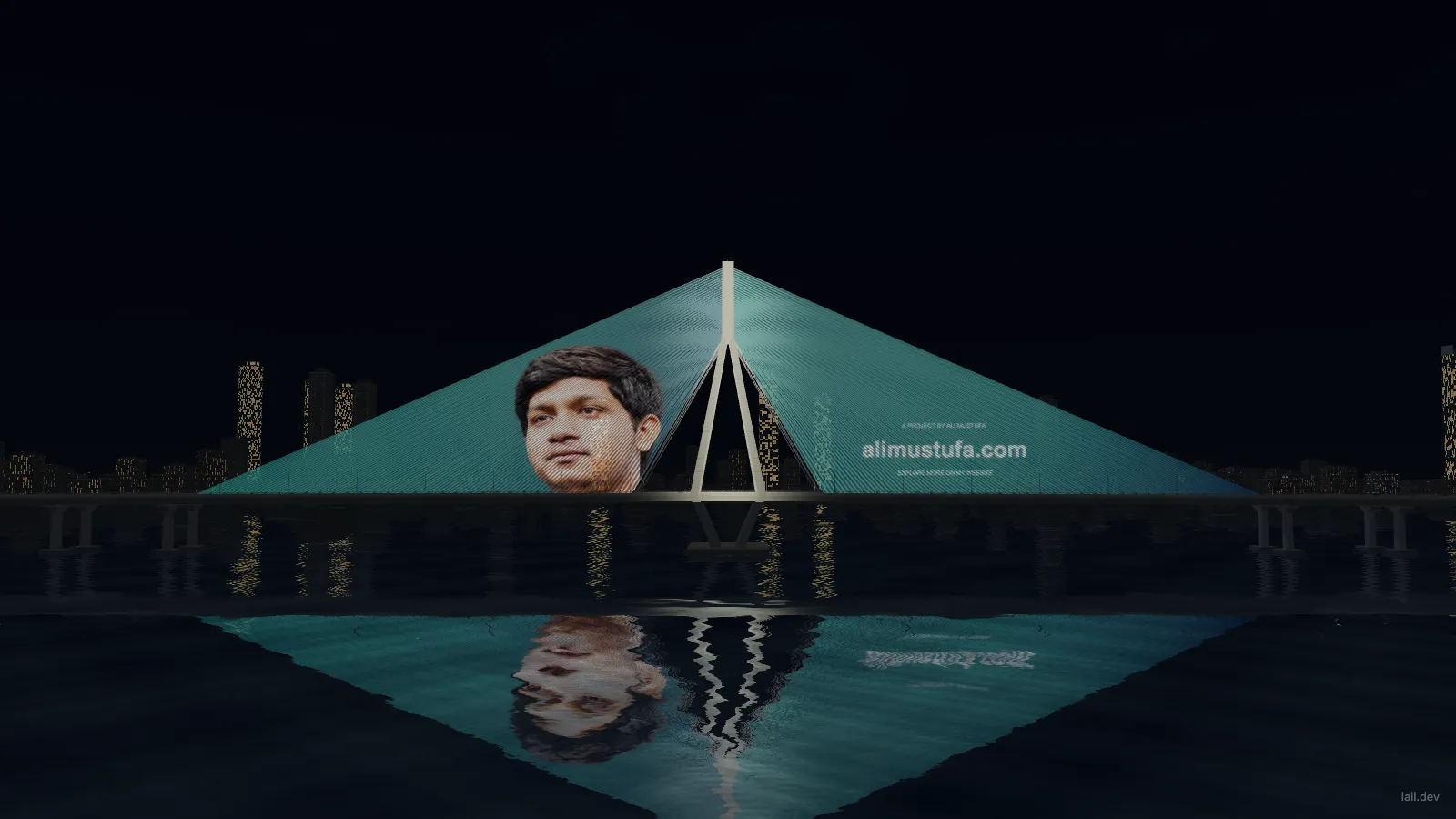
Take photo and the studio’s Save image use the same capture function. It temporarily removes the editor’s projection offset, renders the current scene, and copies the WebGL canvas into a separate 2D canvas. It then restores the onscreen framing.
The export canvas receives a small iali.dev watermark before being encoded as a PNG. The watermark changes only the downloaded pixels. The live scene, source photo and preview stay untouched. Capturing a fresh frame also lets the renderer run with preserveDrawingBuffer disabled.
Give rendering a lifecycle
The studio initialises when opened. On narrow screens it becomes a bottom sheet, which collapses after applying a photo to reveal the result. This defers editor setup; it doesn’t remove its code from the download.
The renderer caps the drawing-buffer size and device pixel ratio. It pauses when the page is hidden and resets its frame timing on return. Reduced-motion settings pause the ride initially and freeze ambient water motion, while controls can still request a new frame.
Fetch the scene; keep personal photos local
The hosted build separates content-hashed JavaScript, CSS, model data and images under https://cdn.alimustufa.com/_astro/sealink/. The model is gzip data carried in a .bin asset; the browser unpacks it with DecompressionStream before reading the GLB. That asset delivery is separate from personal-photo processing, which stays in the browser without uploading the chosen file.
Drafts last for the session. Save a PNG to retain the rendered view. The bridge, skyline, bus route and light display are artistic interpretations, not surveyed engineering data or a physical installation plan. The model license permits personal, non-commercial scene captures; commercial use requires written permission.